Skip to content

Search Console “Deceptive pages” security issue: how to request a review
 Gianluca Catinella, Director, Ad Restore LtdPublished on 7 min read
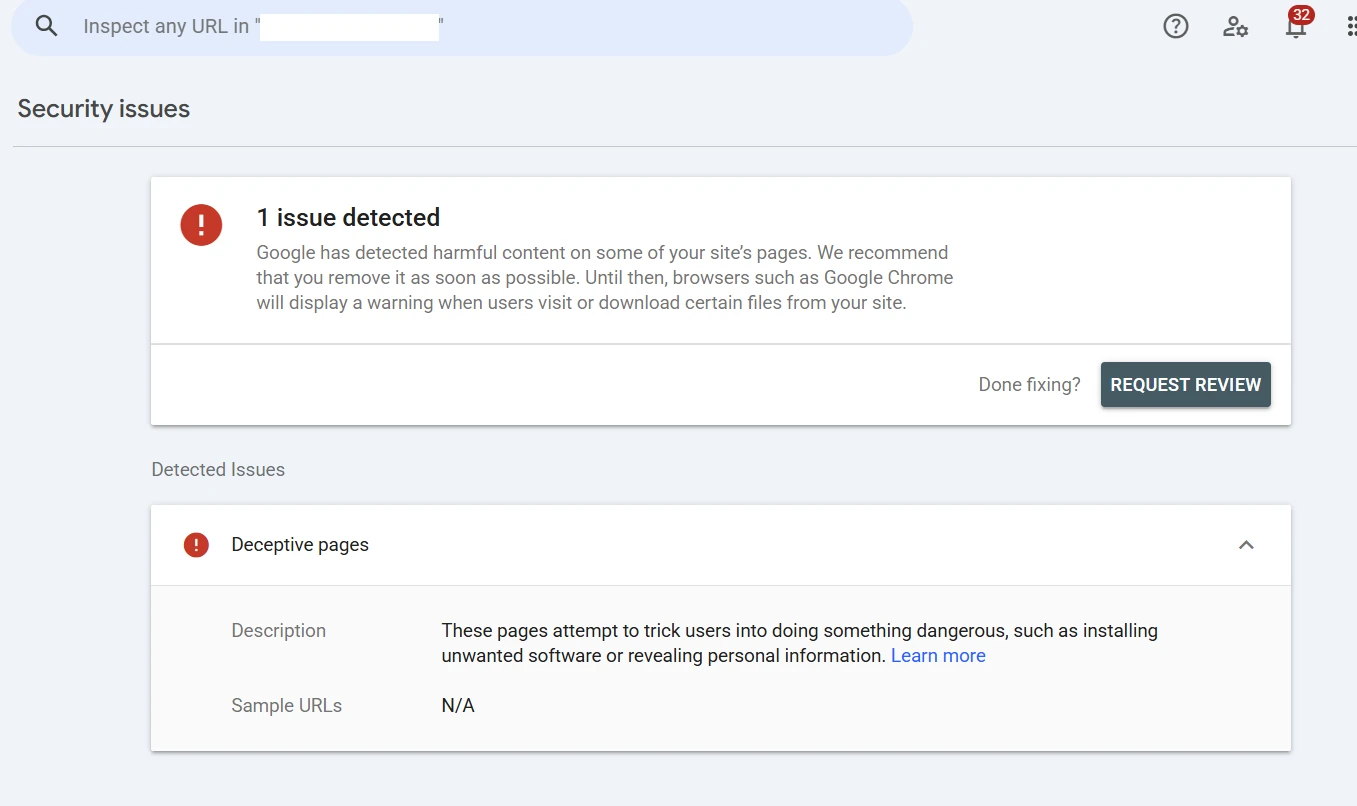
These pages attempt to trick users into doing something dangerous, such as installing unwanted software or revealing personal information.
Search Console’s description of “Deceptive pages” in the Security issues report, from a screenshot taken in November 2026.
Search Console’s Security issues report says “1 issue detected”. The issue is “Deceptive pages”, the sample URLs say N/A, and there’s a Request review button. Google is saying your site includes content that tricks visitors into doing something dangerous. Until that’s cleared, browsers such as Chrome can warn people away.
Checked against Google’s help pages on 5 November 2026. Google changes them without notice, so check the linked page before relying on a detail.
At a glance
Chrome can warn visitors
Browsers such as Chrome can show a warning until it’s cleared.
N/A isn’t all clear
No sample URLs doesn’t mean no pages are affected.
Fix everything first
Request a review only when every page is fixed.
Three things to write
The exact issue, the steps you took and the outcome.
One request, then wait
Switching back and forth can block reviews for 30 days.
On this page10 sections
What “Deceptive pages” means
Google defines it as content that tricks visitors into doing something dangerous, such as revealing confidential information or downloading software. Pages count as deceptive when they either:
- pretend to act, or look and feel, like a trusted entity, such as your own device, browser or the website itself; or
- try to trick you into doing something you’d only do for a trusted entity, like sharing a password, calling a tech support number or downloading software.
Google calls this social engineering. Chrome may display a “Deceptive site ahead” warning to visitors.
You may not see the warning yourself. Google says to rely on the Security Issues report as the source of truth.
“Sample URLs: N/A”: what Google says
Google says a security issue can come with no example URLs, and this does not mean that no pages are affected, only that it couldn’t generate samples.
Its Search Central guidance adds that if the report doesn’t contain sample URLs and you’re confident your site doesn’t contain social engineering, you should request a security review.
The key word is confident. With no samples, that means checking the whole site. Note the date that the issue was first detected and look at what changed around then.
Where to look when Google gives you no URLs
These checks come from Google’s guidance for deceptive pages.
Check who owns the property
Confirm you own the site in Search Console and that no new, suspicious owners have been added. Look under Settings, then Users and permissions.
Check every property
A URL-prefix property covers only that prefix: subdomains, such as m.example.com, are not included. A Domain property includes all subdomains, so check its report too.
Look from outside your network
Use a computer that’s not inside the network that serves your site: attackers can hide from site owners.
Check embedded content
Check the third-party resources included in your site: ads, images and other embedded items.
Check pages other companies run under your address
See below.
Check for a hack
Google warns that hackers can take control of innocent sites. If you find pages or code you didn’t create, follow Google’s guidance for hacked sites.
Step 5 catches legitimate businesses. Google lists insufficiently labeled third-party services as social engineering: a site run by another company on your behalf, without the relationship being clear. Think of a log-in, payment, help desk or booking page another company runs under your web address. Google’s guidelines ask that:
- every page clearly includes the third-party brand;
- every page with your branding has a statement to explicitly state the relationship between the first and third party, with a link for more information.
Google’s test is whether a user viewing the page in isolation understands which site they’re on and who is behind it.
What to write in “What was done to fix the issues?”
Request review opens a short dialog: a tick box, “All issues were fixed”, and one text box, “What was done to fix the issues?”.
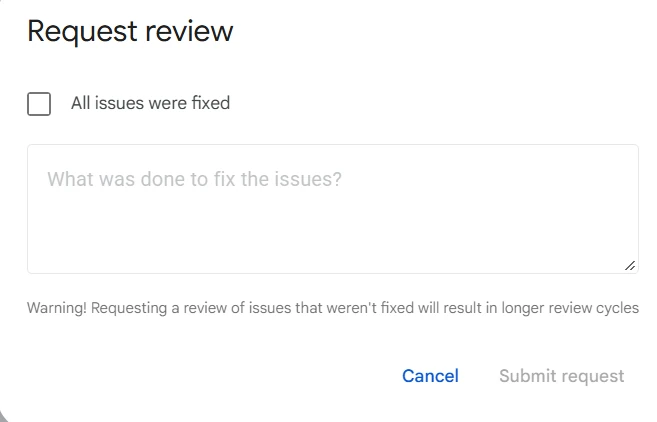
Google says a good request does three things:
- The exact issue. It explains the exact quality issue on your site. Name it as Google shows it and say how you checked the whole site.
- The steps you took. One short line per change: what you removed, relabelled or took offline.
- The outcome. It documents the outcome of your efforts: what’s true now, and how you checked.
An older Google page’s phishing example is one sentence: “I removed the page that was asking users to enter personal information”.
Keep it to facts. Don’t guess at a cause; Google doesn’t ask for one. Don’t describe work in progress: request a review when all issues listed in the report are fixed in all pages.
Don’t tick “All issues were fixed” or press Submit until everything is fixed.
The dialog warns: “Requesting a review of issues that weren’t fixed will result in longer review cycles”. Then send one request only, never several. Google’s words: “don’t resubmit your request before you get a final decision”. An unfixed request can even get you marked as a repeat offender.
The 30-day repeat-offender block
Under Safe Browsing’s Repeat Offenders policy, sites that repeatedly switch between compliant and noncompliant behavior within a short window are classed as Repeat Offenders. The owner is told by email and can’t request more reviews in Search Console. Repeat Offender status persists for 30 days.
So request one review, once everything is fixed. After the warning is lifted, don’t put back what you took down.
Who can request a review
Google’s permissions table lists “Reconsideration request” for Owners and Full users, not Restricted users. A reconsideration request covers problems found in a manual action or security issues notification, so that includes this review.
After you press Submit
Google says you will get a review confirmation message when you send your request, and that you will also receive an email when the review is complete.
The Security issues help page says a review can take from a few days to a few weeks; the social engineering page says a review can take several days.
If the site is clean, the warnings go, though it can take a few days for updates to travel between Safe Browsing, Chrome and Search Console. You can check the public status on Google’s Safe Browsing site status page.
Search Console flags and Google Ads
Google links the two in its Google Ads policy on compromised sites. For ads disapproved there, Google says to check the site’s Safe Browsing status, fix the issue and file an appeal through Google Search Console to have the domain removed from the Safe Browsing threat list. Google says the site or landing pages should automatically be re-enabled to serve ads once that’s done. Our Compromised site guide covers the Google Ads side.
In our view, a security flag in Search Console could be an area of concern for Google Ads suspensions too, such as Malicious software or Unacceptable Business Practices, because it affects how Google sees your whole site. If you’re dealing with either of these suspensions, it’s worth checking your Security issues report, and you can request a free quote for help.
Frequently asked questions
What does “Sample URLs: N/A” mean in Search Console?
Google says it doesn’t mean no pages are affected, only that it couldn’t generate samples. Check the whole site first.
What should I write in “What was done to fix the issues?”
Google asks for three things: the exact issue, the steps you’ve taken and the outcome, in plain facts.
How long does a Deceptive pages review take?
Google says from a few days to a few weeks on one help page and several days on another. You get an email when it’s complete.
Can I send another request while one is pending?
No. Google asks you not to resubmit before a final decision. Sites that keep switching between safe and unsafe can be blocked from reviews for 30 days.
Does a Search Console security flag affect Google Ads?
Google links the two in its Compromised sites policy, which disapproves ads. In our view, a flag could also be an area of concern for suspensions such as Malicious software or Unacceptable Business Practices, so it’s worth checking the Security issues report.