Skip to content

Merchant Center Misrepresentation: What to Fix Before You Request a Review
 Gianluca Catinella, Director, Ad Restore LtdPublished on Updated 11 min read
Fix Misrepresentation issue that prevents your products from showing on Google
The red banner across the top of a suspended Merchant Center account, with a “Fix issue” button beside it. Captured from a real account on 7 November 2026.
That banner means Google has found a Misrepresentation issue that affects your whole account, so your products don’t show on Google. The “Fix issue” button leads to a review request, and review requests run out. Google says that if your issues aren’t resolved by the second review attempt, a one-week cool-down period may begin. In the account shown below, Google’s panel now says the merchant “can’t request further reviews”.
In our experience, fixing this is meticulous work, and Merchant Center is very different from Google Ads. This guide covers what to get right before you ask for a review. For what the notice itself means, read our guide to the “customers are being misled” notice.
Checked against Google’s Merchant Center Help pages and its Merchant API documentation on 7 November 2026. Google changes them without notice, so check the linked page before relying on a detail. The screenshots are from a real account; its name, address, account number and review date are hidden.
At a glance
Reviews run out
In the account shown, Google’s panel says “you can’t request further reviews”.
Not the same as Google Ads
In our experience, Merchant Center is very different, and there’s a limit to how many reviews you can do.
“I disagree” wastes a review, in our experience
For Misrepresentation, Google is normally looking for a change, and it doesn’t normally get it wrong.
Verified isn’t the same as fixed
The same account shows “Verified” and “Claimed”, and it’s still suspended.
Then leave it alone
In our experience, once the review is in, leave your operations as they are and let Google do its thing.
On this page13 sections
What the banner means, and what the button does
Google says setup and policy issues show in a banner at the top of your Merchant Center. You’ll also find them under Products, in the Needs attention tab, under View setup and policy issues.
From there you have two options. If the issue has been resolved, select I fixed the issue, then select Request review. If you believe that the findings are an error, select I disagree with the issue, then Request review.
Either way, the review isn’t limited to the one thing you fixed. Google says the review will apply to all issues for the country where you sell.
Reviews run out
The button looks free. Google’s own pages say otherwise:
- You may get one go at disagreeing. Google says you may only have one chance to disagree with the issue.
- A cool-down may start after the second try. If your issues aren’t resolved by the second review attempt, a one-week cool-down period may begin.
- The cool-down can’t be skipped. The review button will be disabled while it runs, Google Support can’t bypass or shorten the cool-down period, and the cool-down period may increase with each unsuccessful review. If a review has already come back, see Review not approved.
- There may be a limit. Depending on the violation, Google says there might be a limit on how many reviews you can request.
In our experience, there’s a limit to how many reviews you can do before you’ve removed your ability to unsuspend the account at all. None of Google’s help pages we read says that in so many words.
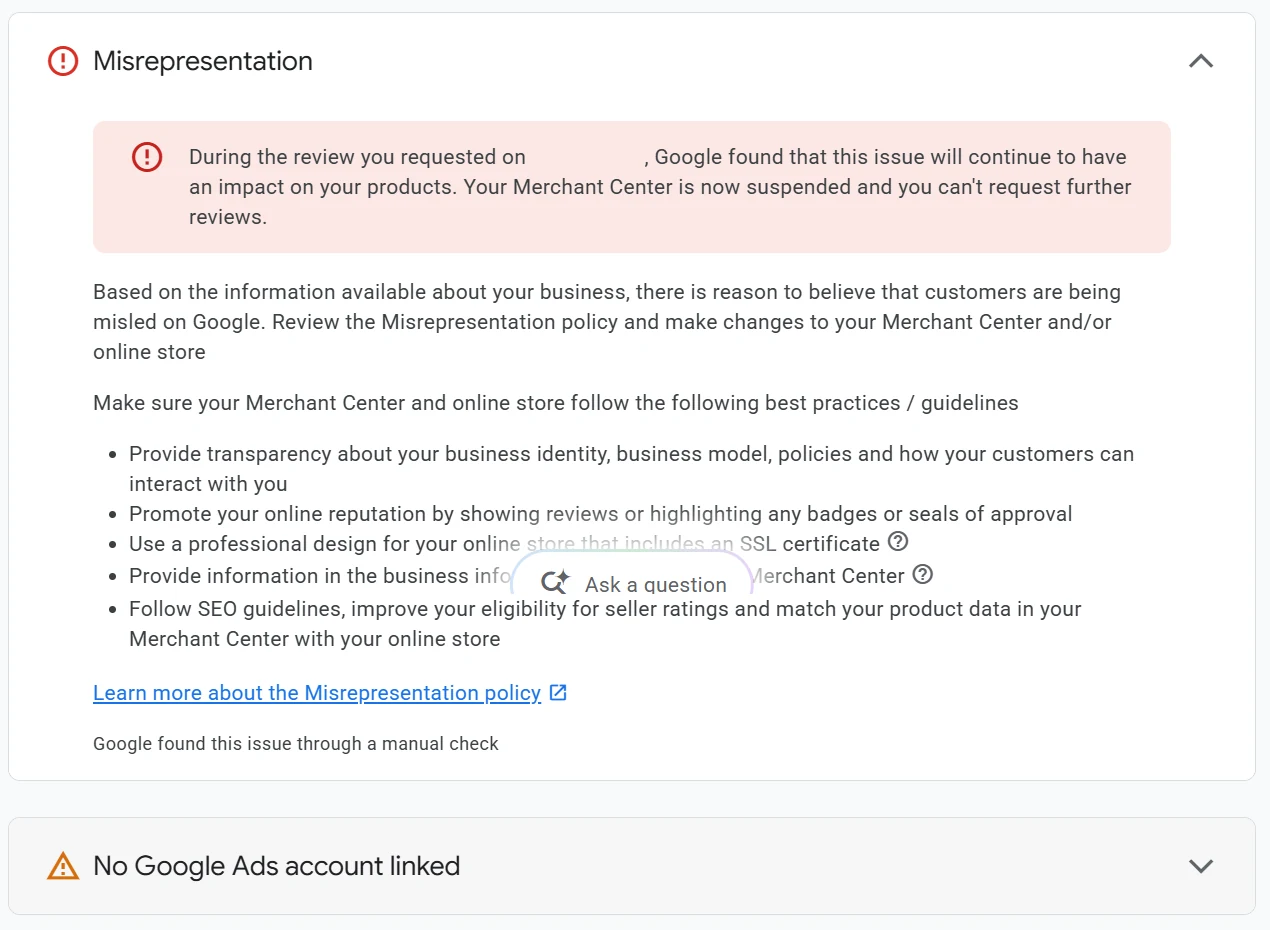
The panel says Google “found that this issue will continue to have an impact on your products. Your Merchant Center is now suspended and you can’t request further reviews.” Underneath: “Google found this issue through a manual check.” That account came to us with a Google Ads suspension, and its Merchant Center was linked to the suspended account.
Merchant Center is not Google Ads
In our experience, Merchant Center is very different from Google Ads, and the review limit above is one of the differences.
For the sections of the policy Google calls egregious, accounts will be suspended upon detection and without prior warning, and Google says you won’t be allowed to list content with it again. For the other sections, Google says a warning will be issued at least seven days prior to any suspension of your account. And if a suspended Google Ads account is linked, Google says the Google Ads suspension must be fixed first; see why a suspended Google Ads account blocks your review.
What’s usually still wrong
In our experience, when people think they’ve finished, what’s most often still wrong is improper linkage, improper details, and a site that isn’t compliant with the policy. Google’s own advice before a review is to thoroughly examine your online shop and Merchant Center account.
What’s connected to it
Check every account and service connected to your Merchant Center:
- Linked accounts. Google’s Abuse of the network policy says that having a suspended account linked to your Merchant Center account is not allowed.
- Your domain. Make sure the domain in Merchant Center matches the claimed domain, and only link to the domain from your Merchant Center account.
- The app that sends your products. In our experience, third-party apps that connect a shop’s products to Merchant Center have been behind Misrepresentation suspensions time and time again, when they weren’t kept up to date.
Google’s guidance on those connections:
- If your shop runs on a platform such as Shopify, you can connect it, and Google says all of your product information from your shop is then updated automatically.
- Google says it’s recommended that you manage your product data using that platform, and that changes may take 24–48 hours to reach Merchant Center.
- Google also says you can choose to use a combination of methods. If you upload a large number of feeds or change your product data often, it’s strongly recommended that you upload this directly using the Merchant API.
- If an app or developer connects through Google’s API, it should be on the current one: Google says the Content API for Shopping was sunset on August 18, 2026, and the Merchant API replaces it.
- Merchant Center’s automatic updates help, but Google says they aren’t a replacement for regular updates of your product data.
Whichever method you use, Google’s rule is the same: ensure that prices, availability and product attributes in your data source exactly match your online shop.
Your business details
- Your business name, address and phone number should be identical in your website footer, contact page and Merchant Center settings.
- Google asks you to avoid any mismatches in your registered business and domain names.
- Keep at least one way to reach you easily visible prior to checkout, and add your business phone number on the Business information page in Merchant Center.
- The policy names hiding, omitting or misrepresenting material details about your actual business location, and intentionally hiding the actual location from which your products are dispatched.
A compliant site
- Returns. Your policy should explain exactly how you handle returns and refunds, and if you don’t take returns, still state your policy explicitly. Keep it consistent throughout your website.
- The real price. The policy names not disclosing the total price, including all taxes, fees and surcharges, and Google says the price must not increase at checkout.
- A checkout that works. People must be able to successfully add products to the basket and fully complete the checkout process, and you must secure your checkout with a valid SSL certificate.
- No loose ends. Remove all placeholder text and fix any broken links.
Verified, claimed, and still suspended
The account in our screenshots shows its online store as “Verified” and “Claimed”. It’s still suspended for Misrepresentation.
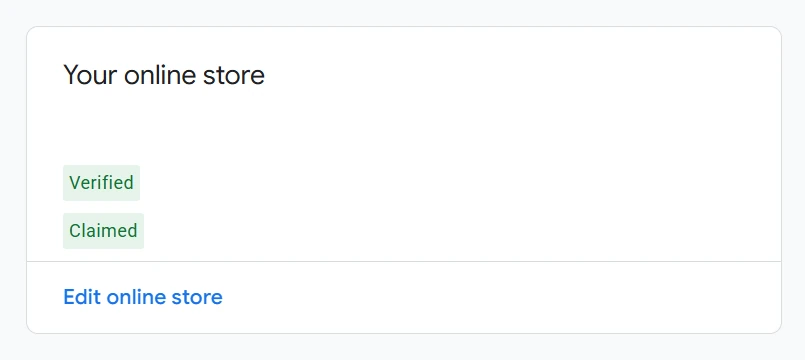
Those labels prove less than they seem. Google says that when you verify your online shop, you let it know you own it, and claiming reserves the address for use with your account exclusively. Google also says that sometimes it can take time before a sufficient level of trust is established.
In our experience, when everything shows as verified and the account is still suspended, the cause is usually improper linkage, and how the store page is set up.
“I fixed the issue” or “I disagree with the issue”?
In our experience, for Misrepresentation, Google is normally looking for a change, and it doesn’t normally get it wrong. Choose “I disagree” and you’re just going to throw a review away.
Google says to make sure that you understand the policy and can support the request before you disagree, and that even then you may be required to fix the issue based on policies and requirements.
Before you press the button
Check what’s connected.
Linked accounts, your domain, and the app or method that sends your products.
Complete merchant verification if it’s asked for.
Google says this must be completed before requesting a review.
Make every fix live.
Business details, contact, returns, prices, checkout and broken links, on the shop and in Merchant Center.
Let the product data catch up.
Google says to update your product data manually or wait for your automated upload schedule to run before requesting any reviews.
Choose “I fixed the issue”, once.
While the review is in
In our experience, the best thing to do is leave your operations alone during the review, and let Google do its thing.
Google gives several timescales. Its review page says wait seven working days, and further down that the review may take up to two weeks to complete. If it succeeds, products that are approved will be eligible to show across Google within 24 hours.
AI to prepare, a specialist to take responsibility
In our experience, ChatGPT and similar tools are good for organising and collecting information, and for making the obvious fixes. Before your first review, collect everything: screenshots of the notice, what you filed, your site before and after your changes, and your data.
If your Merchant Center matters and the cause isn’t clear, bring that record to a specialist: this is what it was, this is what we changed, we filed this and it didn’t work. Then someone accountable handles it, with eyes wide open.
Can it be fixed?
Sometimes. For the egregious sections, Google’s wording isn’t encouraging: accounts are only reinstated in compelling circumstances, and when there is good reason.
We’re upfront about the cases we don’t take. Feed or data-quality disapprovals, counterfeit goods, and stores that can’t show a real business behind them aren’t cases we take. That includes shops with no registered business or company, no proper documents to back the company up, or questionable operations. If Google Ads is the blocker, we say so. If we can’t take your case on, or our first review finds no realistic way forward, you get a full refund before any work starts.
Nobody can promise reinstatement. Only Google decides.
Don’t delete the account and start a new one.
Google says that if you create a new account for the same business, it is likely to be suspended as well, and its Abuse of the network policy names creating new accounts to re-enter the system as a violation. We never help set up a new Merchant Center or Google Ads account for a suspended business. Read why a new account makes things worse.
The review route
- In Merchant Center: select Fix on the banner, or go to Products, then Needs attention, then View setup and policy issues.
- On a platform such as Shopify: Google says you may request a review directly through their application.
- If a linked Google Ads account is suspended: appeal that first. Read what the appeal form asks.
Frequently asked questions
How many times can I request a Merchant Center review?
Google doesn’t publish an overall number. It says you may only have one chance to disagree, and that a one-week cool-down may begin if your issues aren’t resolved by the second attempt, possibly longer after each failed review. In the account shown in this guide, Google’s panel now says “you can’t request further reviews”.
Should I choose “I fixed the issue” or “I disagree with the issue”?
In our experience, “I fixed the issue”, after you’ve made the changes. For Misrepresentation, Google is normally looking for a change and doesn’t normally get it wrong, so “I disagree” is likely to throw a review away.
My shop is verified and claimed. Why is it still suspended?
Verifying tells Google you own the shop, and claiming reserves the address for your account. Neither, on its own, lifts a Misrepresentation suspension. In our experience, the cause is usually improper linkage and how the store page is set up.
Can a third-party app cause a Misrepresentation suspension?
In our experience, apps that connect a shop’s products to Merchant Center have been behind Misrepresentation suspensions time and time again, when they weren’t kept up to date. Whichever method you use, Google says the prices, availability and product details in your data must exactly match your shop.
What should I do while the review is in?
In our experience, leave your operations alone and let Google do its thing. Google’s review page says the review may take up to two weeks.
Can I delete the account and open a new one?
No. Google says a new account for the same business is likely to be suspended as well. Fix the account you have.